

Blog
How to Reboot DTC1500 Printer?
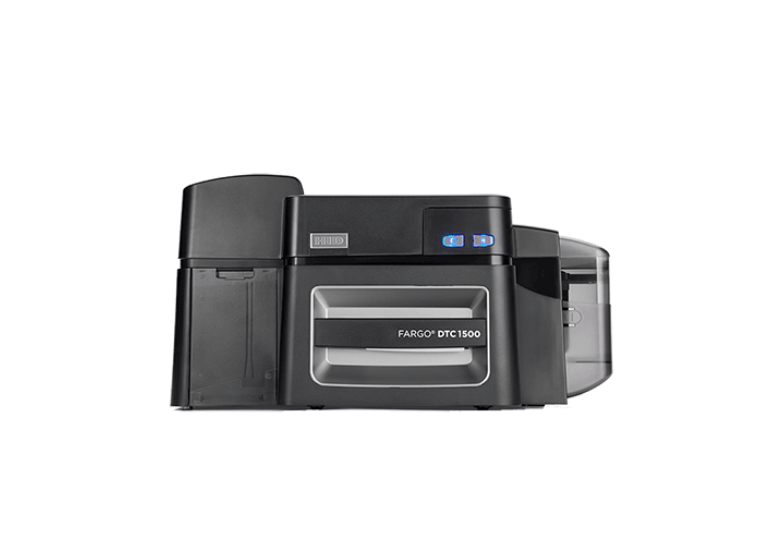
The FARGO DTC1500 printer can be reboot by following these steps:
- First of all turn off the printer using the power button on the front panel
- Then Unplug the power cord from the back of the printer
- Please wait for 5 to 10 seconds to allow the power to fully drain
- After that reconnect the power cord
- Finally Turn on the printer using the front button
- The printer will perform a self-test, and the display should return to “Ready”
Clearing Stuck Jobs or Errors
If you are rebooting to resolve a jam or error, it is recommended to clear the print queue first:
- Navigate to Devices and Printers on your computer
- Right-click the DTC Card Printer and select See what’s printing
- Click Printer and select Cancel all documents
- Proceed with the power-cycling steps listed above.
Additional Troubleshooting
- Card Jams: If a card is jammed, you can use the front panel buttons (which turn into “Forward” and “Back” buttons when the cover is open) to clear the card path.
- Error 144 (EEPROM): If you see this error, restart the printer. If it persists, you may need to reset to factory defaults via the driver settings.
- Networking: If using an Ethernet connection, wait up to one minute after powering on for the printer to configure its IP address.