

Blog
How to clean HDP5000?
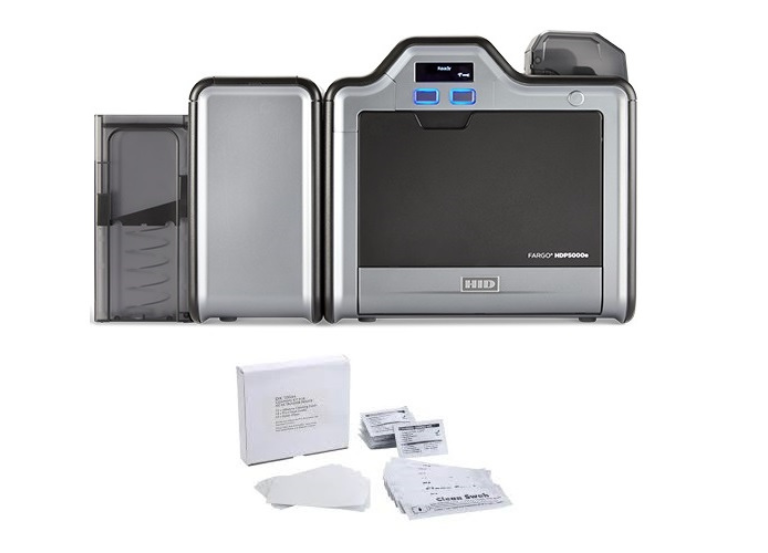
To clean a FARGO HDP5000 printer, use the cleaning kit to run an adhesive cleaning card through the printer via the “Clean Printer” option in the computer’s toolbox, then clean the printhead with a swab, and finally wipe the exterior with a cleaning pad. For a deeper clean, use the long alcohol cleaning card with a manual button sequence.
Step 1: Clean the card path with an adhesive cleaning card
- Power down the printer and open the cover, removing any cards or ribbons.
- Peel the adhesive backing off the adhesive cleaning card. Leave the small liner strip on top if your printer has a magnetic encoder.
- Place the card in the input hopper.
- From your computer, navigate to the printer settings, find the “Toolbox,” and select “Clean Printer” to initiate the cleaning cycle.
- Wait for the card to exit the printer, then reinstall your ribbons and cartridges.
📞 For repair and technical support: +92-303-333-1193
Step 2: Clean the printhead
- Disconnect the printer’s power supply before cleaning the printhead.
- Open the printhead access panel.
Remove a printhead cleaning swab from its packaging and squeeze to saturate the tip.
- Gently wipe the printhead back and forth across its surface.
- Allow the printhead to dry completely.
Step 3: Clean the exterior
- Use a cleaning pad from the kit to wipe down the exterior casing, including the input and output hoppers and the LED display.
- Do not use any other cleaning sprays or solvents.
Step 4: Optional deep clean with the long cleaning card
- Insert the long alcohol cleaning card into the card hopper infeed rollers.
- Manually trigger the cleaning cycle by holding the Forward button for 10 seconds, then the Back button for 10 seconds.
- Feed the card through the printer by holding the Forward button until it exits.