

Blog
How to restart hdp5000 card printer?
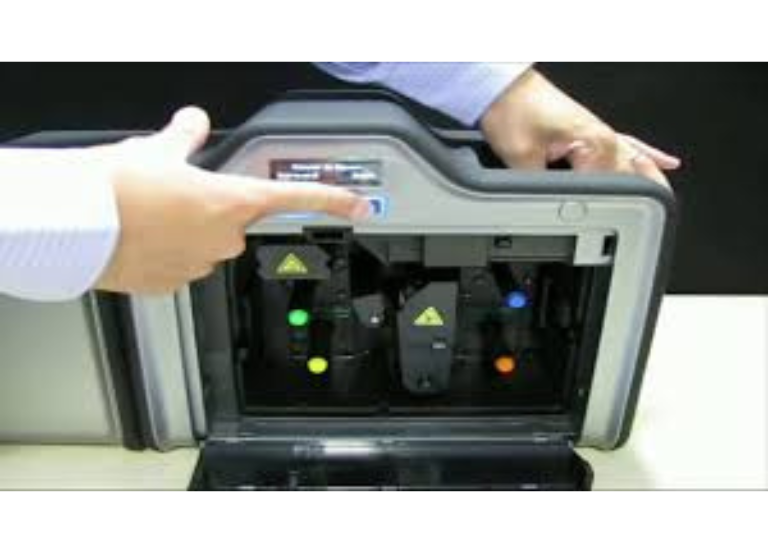
To restart FARGO HDP5000 card printer, the simplest method is a power cycle:
- Unplug the power cord
- Wait 5-30 seconds
- Plug it back
- Turn it on.
- Result: The printer will likely eject any buffered cards and cycle through its startup process.
This often resolves issues and prompts the printer to cycle, but for deeper issues, you might need to use the printer’s internal “Toolbox” to run calibration or use driver settings to access maintenance functions, as detailed in the manufacturer’s guide.
📞 For technical supports: +92-303-333-1193
To restart hdp5000 printer issue continues to occur (Software/Driver Reset)
If the power cycle fails to operate, please attempt the following steps with your computer:
- Open Printer Settings: Go to your computer’s Start Menu > Printers & Faxes (or Devices & Printers) and right-click your HDP5000.
- Access Toolbox: Select “Printing Preferences” and find the “Card” tab, then click the “Toolbox” button.
- Calibrate: In the Toolbox, select “Calibrate Ribbon” and follow the on-screen instructions to recalibrate the print head and film, which can fix ribbon errors.
- Check Card Thickness: Ensure the card thickness setting in the Toolbox matches your physical cards to prevent jams.
For Jams or Significant Problems (See Manual)
- For physical jams, refer to the printer’s user manual or video guides for specific steps, often involving carefully removing film/ribbon and using cleaning cards
- Running a cleaning cycle via the Toolbox or using alcohol cleaning cards is also a key maintenance step