

Blog
How to use a thermal printer for receipts?
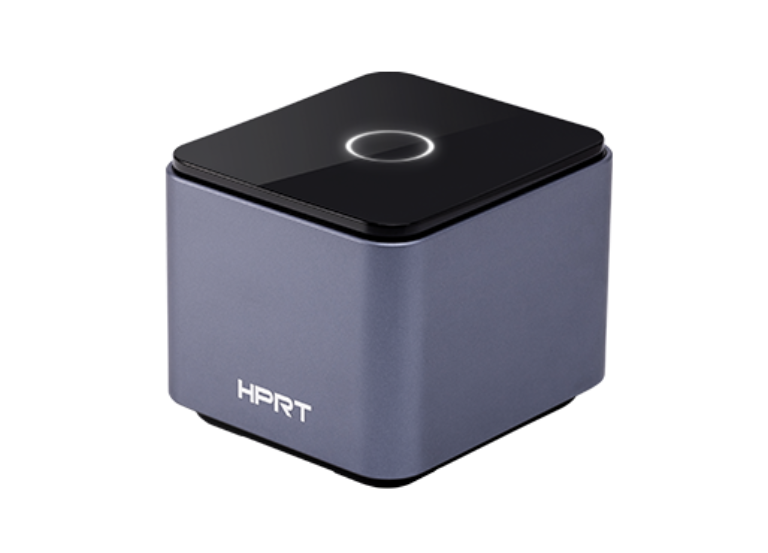
Utilizing a thermal receipt printer is simple as it does not necessitate ink or toner. Regardless of whether you are configuring a standard 80mm POS printer or a more compact 58mm model for a store in Lahore, the procedure adheres to these five fundamental steps.
1. Hardware Setup & Loading Paper
Thermal printers use Direct Thermal technology, meaning the “ink” is actually inside the paper.
-
Identify the Thermal Side: Thermal paper only prints on one side. If you scratch the paper with your fingernail and it leaves a black mark, that is the side that should face the printhead.
-
Drop-in Loading: Most modern printers (like Epson, Star, or Xprinter) use “Drop-in” loading. Open the cover, place the roll so the paper feeds from the bottom of the roll toward the front, and leave a small tail sticking out before closing the lid.
-
Self-Test: To ensure the hardware is working, turn the printer OFF. Hold down the FEED button and turn the power ON. Release the button after a second. It should print a “Self-Test” receipt showing the firmware and settings.
2. Connection to the POS System
In 2026, most printers connect in one of three ways:
-
USB: The most common for single-counter retail. Plug it directly into your PC or POS terminal.
-
Bluetooth/Wi-Fi: Popular for mobile billing and food delivery apps (like Foodpanda). You pair it with your tablet or smartphone just like a speaker.
3. Driver Installation
Typically, Windows identifies thermal printers as “Generic/Text Only.” However, to enable functionalities such as the Auto-Cutter, it is necessary to install the appropriate driver.
-
Official Drivers: Download the driver from the manufacturer’s site (e.g., HPRT, Xprinter, or Epson).
-
Port Configuration: During installation, ensure you select the correct port (USB001, IP Address, or COM).
-
Paper Size: In “Printing Preferences,” set the paper size to 80mm x Receipt (or 58mm) to avoid the text being cut off.
4. Connecting the Cash Drawer
If you have a cash drawer, you don’t plug it into the computer.
-
Look for the RJ11/RJ12 port (it looks like a phone jack) on the back of the thermal printer.
-
Plug the drawer into the printer. In the printer driver settings, enable the option “Open Cash Drawer Before Printing.”
5. Maintenance
Since you manage hardware like the ix4p and HDP printers, you know that dust is the enemy.
-
Printhead Clean: If the receipts have white vertical lines, the printhead is dirty. Wipe the thermal element (the glass strip) with a cotton swab dipped in Isopropyl Alcohol.
-
Avoid Heat: Avoid placing your thermal paper rolls in a hot vehicle or near a sunlit window; excessive heat will cause the entire roll to turn black (activating the chemical properties).
-
The “Auto-Cutter” Jam: If the cutter gets stuck, most printers have a small dial under a plastic front cover. Turn that dial manually to retract the blade and clear the jam.