

Blog
How to fix card jam FARGO DTC1250e Printer?

A card jam in the HID FARGO DTC1250e is a common issue typically caused by static build-up, debris on the rollers, or an incorrect card thickness configuration.
Follow this step-by-step troubleshooting workflow to safely clear the jam and prevent it from recurring:
Step 1: Clear the Jam Softly (Software First)
Before attempting to manually access the printer, check if the internal stepper motors can safely eject the card.:
- When a jam occurs, the Pause button on front panel will flash Red.
- Press the flashing Pause button once. The printer will attempt to automatically run its rollers and eject the stuck card forward or backward.
- If it remains stuck, press the Power button to cancel the print job completely, which triggers a secondary reset-ejection cycle.
Manually Remove the Stuck Card
If the automated buttons fail to clear it, you will need to manually pull it out:
- Turn off the printer and disconnect the power cable to protect the internal motherboard components from static shorts.
- Open the main ribbon cartridge door and remove the ribbon cartridge.
- Open the Input Card Hopper and the Output/Exit Hopper doors.
- Look inside the internal card path. Gently grip the edges of the visible card and pull it out along the natural direction of the path (do not yank it forcefully or sideways, as this can bend the sensitive thermal printhead or internal logic gates)
Clean the Intake Rollers
If cards frequently stick immediately upon feeding into the printer, the intake rollers have likely accumulated oils, dust, or micro-debris:
- Pull out the card loading drawer (Input Hopper).
- Locate the Adhesive Cleaning Roller (the small sticky roller situated between the input tray and the printing block)
- If it is coated in white dust or hair, replace it with a fresh adhesive roller from your ribbon pack
- If your feed rollers are slick, run an official FARGO Cleaning Card cycle through your driver software’s Toolbox to completely wipe down the internal transit path
Step 4: Check Card Settings (Prevention)
To make sure the problem doesn’t immediately return on your next print job, verify these configurations:
-
The Card Thickness Gate: Look at the small blue tab located right next to the card input hopper slot. Ensure it matches your card specification. If you are printing standard CR-80 / 30mil cards, the lever must be pulled precisely into place. If it is slid open too high, the printer may accidentally pull two cards at once, triggering an instant feed jam.
-
Static Shock (Card Fanning): Brand-new packs of PVC cards have a high static charge that binds them tightly together. Before dropping a fresh stack into the input hopper, always fan the edges like a deck of playing cards to break the static seal.
-
Direct Power: Ensure your printer is plugged directly into a stable wall outlet or a reliable UPS backup battery. Fluctuations or running the unit off cheap, over-extended surge protectors can cause the feed motor to stall mid-cycle.
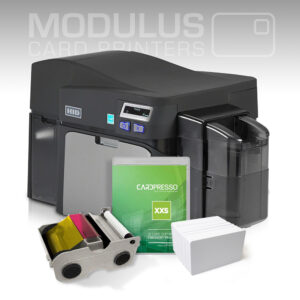
HID FARGO DTC1250e ID Card Printer and Encoder
How to restart hdp5000 card printer?