

Blog
How to fix card jam FARGO DTC1250e?
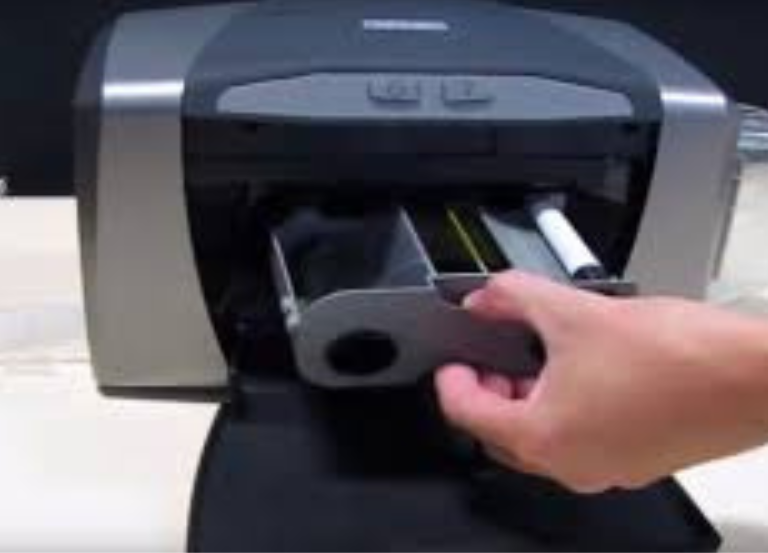
To fix card jam FARGO DTC1250e begin by turning off and disconnecting the printer from the power source. Next, lift the lid and carefully extract any cards or ribbons that are jammed. If a card is lodged, utilize the “Forward” and “Back” buttons to assist in its removal.
Once the blockage has been cleared, clean the printhead and rollers using a cleaning swab or card, inspect the ribbon, and then restart the printer prior to attempting to print again.
Step-by-step guide
- Power down and unplug: First of all turn the printer off and unplug the power cord from the wall.
- Open the lid: Press the top button to open the printer’s lid.
- Remove the ribbon cradle: Carefully remove the ribbon cradle and place it on a clean surface.
- Remove any debris: Inspect inside the printer and gently remove any trapped cards or torn ribbon. Do not use sharp tools.
- Use the buttons to free the card:
- If the lid is open, the front and back buttons act as forward and back for the rollers.
- Press and hold the “Forward” button while gently guiding the card towards the exit with your other hand.
Clean the printer:
- Printhead: With the printer unplugged, use a printhead cleaning swab to gently wipe the printhead, then allow it to dry completely.
- Card path and rollers: Use an adhesive cleaning card by going to Toolbox in the printer’s settings and selecting Clean Printer.
- Repair or replace the ribbon: If the ribbon was torn, repair it with tape or replace it. Wind the new ribbon onto the spool before reinserting.
- Restart and test: Reinstall the ribbon and cradle, close the lid, and plug the printer back in. Restart the printer and perform a test print to ensure the issue is resolved.
Additional troubleshooting
- Update drivers and firmware: Ensure you have the latest drivers and firmware for your printer.
- Check the cards: Make sure you are using the correct card type and that the cards are not stuck together. Try using a different pack of cards.
- Check power supply: Ensure you are using the correct power supply and that the printer is not plugged into a surge protector.