

Blog
NADRA Online Verification with HID FARGO TC710 Reader
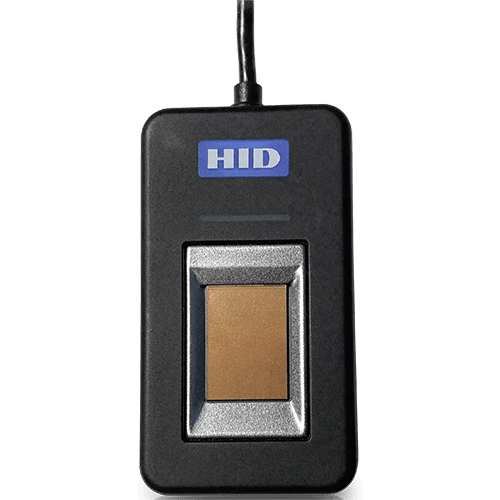
Using a desktop USB fingerprint scanner like the HID EikonTouch TC710 for NADRA verification requires proper drivers, official middleware, and an integrated portal connection. The NADRA online verification with HID FARGO tc710 reader is best device.
Setup and Requirements
- Device Drivers: Install the correct Windows or Linux drivers for the HID EikonTouch TC710 (DigitalPersona/HID biometric core framework).
- NADRA Middleware: Ensure the specific NADRA biometric capture service or client-side agent software is active on your machine to interface with the reader.
- Portal Access: Access an authorized corporate, franchise, or government verification channel (such as NADRA’s e-Sahulat, BIOSYS, or licensed verification APIs) that supports external USB optical scanners.
Troubleshooting Steps
- Device Not Recognized: Check Device Manager to ensure the HID sensor has no yellow warning marks and the driver matches your OS architecture.
- Capture Failure: Clean the glass optical surface of the TC710 scanner and ensure the user’s finger is clean and dry.
- Connection Error: The 16MB flash memory capacity provides substantial storage for fonts and graphics, facilitating convenient retrieval and printing of required information. Additionally, the 300-meter ribbon capacity minimizes operational interruptions by reducing the frequency of ribbon replacement procedures.
If you can tell me what software or portal you are trying to use (e.g., e-Sahulat, a private API, or custom software), I can provide more specific driver or connection steps.